KlipRok
Sign inSign up - It’s FREE
RelatedPodcast projects

Podcast Split Layouts

Four Ways To Show Your Guests.

Pick how two speakers appear in your clip: auto-zoom on whoever talks, hard cuts, both side by side, or a separate clip for every turn.

orUpload files
  • 4 split layouts
  • 2 layouts on Free
  • Automatic speaker detection
  • 4 quality levels
LayoutsActive SpeakerFull Screen SwitchSplit ScreenPer-Speaker
Add your episode

Upload a video podcast or paste a link.

Podcast Split Layouts

How it works

Three steps, from start to finish.

1

Add your episode

Upload a video podcast or paste a link.

2

Speakers are detected

KlipRok finds each speaker automatically.

3

Choose a layout

Pick Active Speaker, Full Screen Switch, Split Screen or Per-Speaker Clips.

More previews

See what else KlipRok does for this feature.

Add your episode
  1. Add your episodeUpload a file or paste a link to your video.
  2. Speakers are detectedKlipRok finds who is speaking and when.
  3. Choose a layoutPick one of the four modes and the clip style you want.
  4. Get your clipsDownload vertical clips with captions burned in.
Your podcast clips are ready
◈ Podcast Split Layouts

Four Ways To
Show Your Guests.

Pick how two speakers appear in your clip: auto-zoom on whoever talks, hard cuts, both side by side, or a separate clip for every turn.

2 layouts on Free · all 4 on paid plans
4
Split layouts
2
Included on Free
Auto
Speaker detection
4
Export quality levels
The 4 Layouts

Pick The Look
That Fits Your Show.

Active Speaker (Auto Zoom)
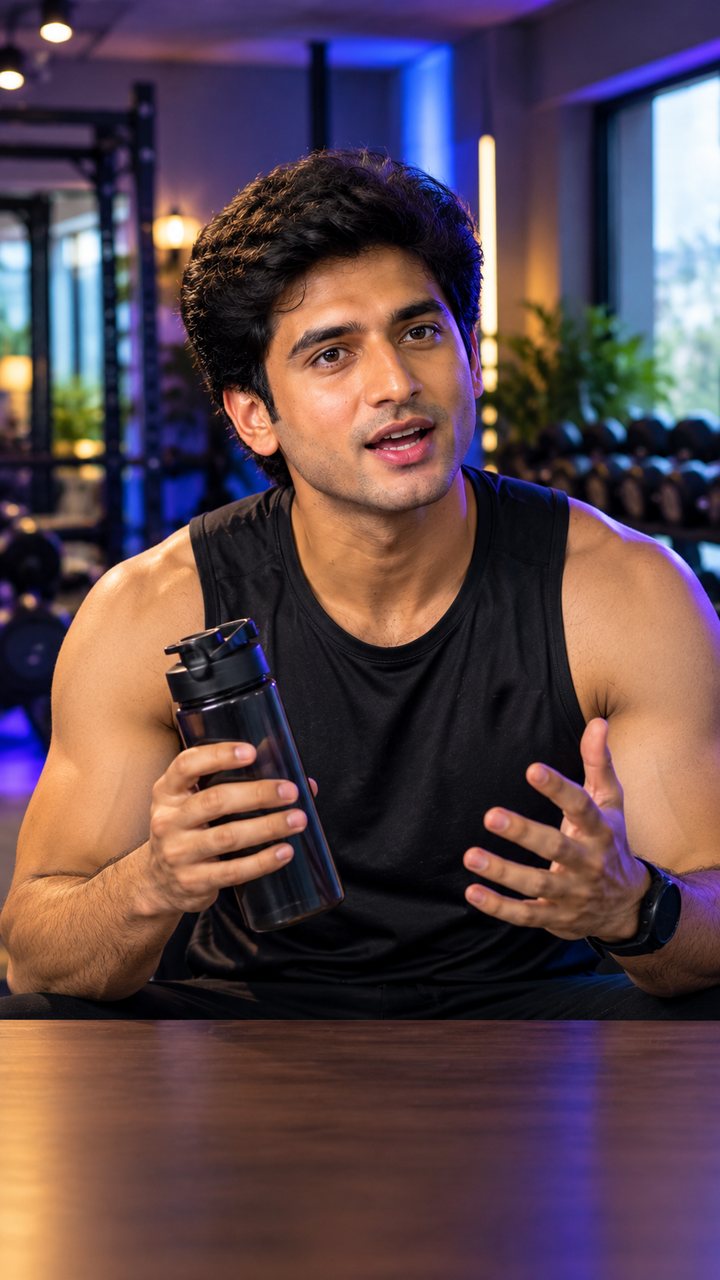
The active speaker zooms into frame while the other speaker stays in a small picture-in-picture. Best for dynamic conversation and TikTok. Included on Free.
Full Screen Switch (Auto Cut)
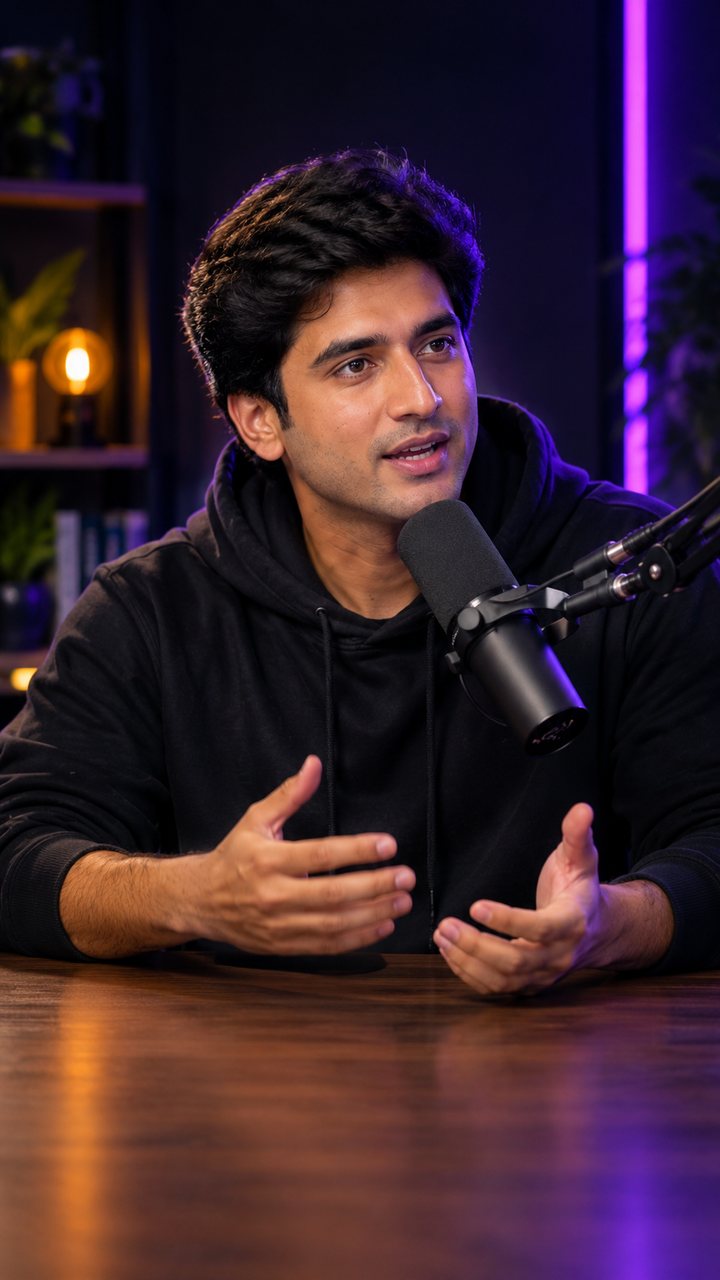
The speaker who is talking takes the full screen and the video cuts when the other person speaks. Best for single-speaker focus and YouTube Shorts. Included on Free.
Split Screen (Always Visible)
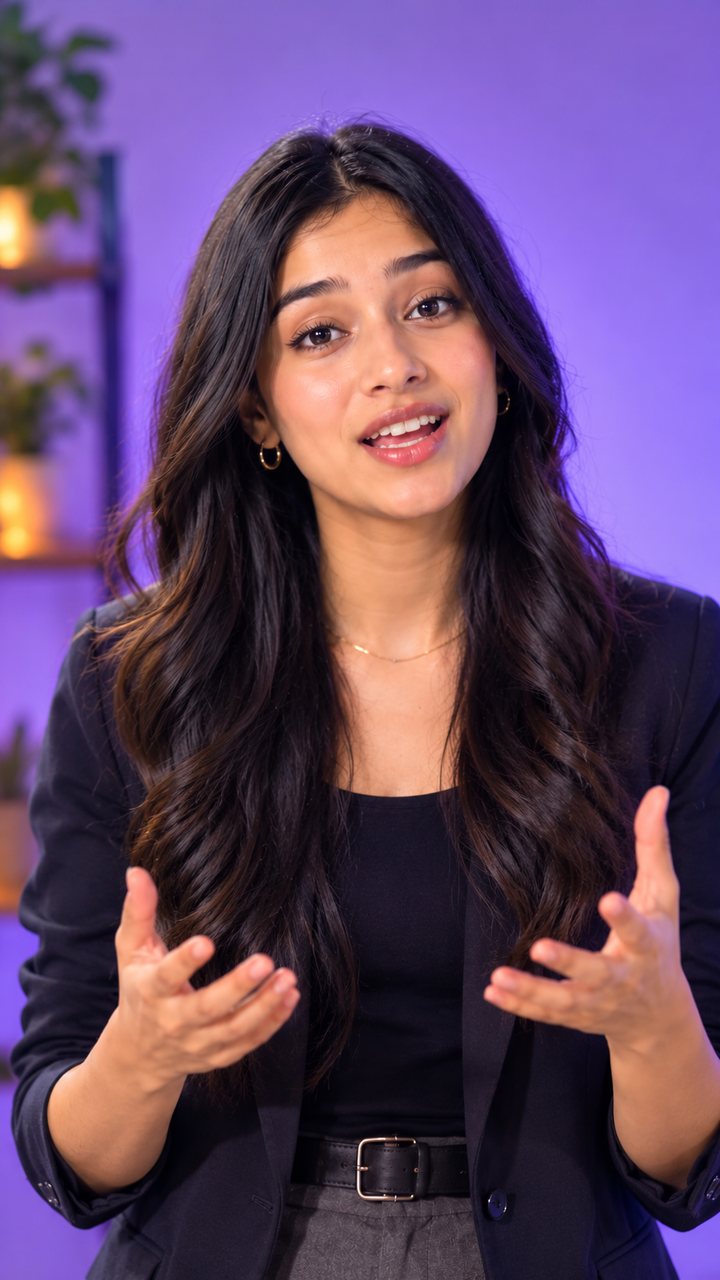
Both speakers stay visible, and the active speaker gets a highlight border. Best for interviews and debate-style clips. Paid plans.
Per-Speaker Clips (One Per Turn)
Every time a speaker talks, that turn becomes its own full-screen clip. You set the minimum and maximum clip length. Paid plans.
How It Works

Upload.
Choose A Layout. Export.

01
Add your episode
Upload a file or paste a link to your video.
02
Speakers are detected
KlipRok finds who is speaking and when.
03
Choose a layout
Pick one of the four modes and the clip style you want.
04
Get your clips
Download vertical clips with captions burned in.
Control What You Get

Pick Clips
Your Way.

AI picks the best clips
The AI reads the whole podcast and finds the most viral moments with titles and scores.
Manual selection
Choose your own start and end points when you know the moment.
Whole video
Process the full episode as one output.
Caption style
Word Pop, Karaoke or Standard captions on every clip.
Quality level
Choose Fast, Medium, High or Ultra. Free exports go up to Medium.
Per-speaker length
For Per-Speaker Clips, set minimum and maximum clip duration.
Who Uses It

Great For
Two-Person Shows.

Podcasters
Turn episodes into vertical clips with both hosts on screen.
Interview shows
Keep guest and host visible with Split Screen.
YouTubers
Cut talking-head conversations into Shorts.
Debate and reaction channels
Highlight whoever is talking with a border.
Marketing teams
Pull quote clips from webinars and panel talks.
Multilingual shows
Captions in 50+ languages on each clip.
FAQ

Frequently Asked
Questions

Four: Active Speaker, Full Screen Switch, Split Screen and Per-Speaker Clips.
Active Speaker and Full Screen Switch. Split Screen and Per-Speaker Clips need a paid plan.
No. Per-Speaker Clips finds its own turns, so it processes the whole video instead of AI window selection.
Yes. Paste a video link and KlipRok imports it before processing.
Yes. Choose Word Pop, Karaoke or Standard captions.
Split Your First Episode

Pick a layout and see the result.

Split My Podcast →
Get free clips