KlipRok
Sign inSign up - It’s FREE
RelatedClips projects

Manual Clip Selection

You Pick The Moments. KlipRok Does The Rest.

Drag on the timeline or type exact start and end times. Only the moments you select become clips, with captions, reframe and quality applied as usual.

orUpload files
  • Drag or type times
  • Any number of clips
  • No AI decisions
  • Every plan
Select byDraggingTyping timesAny count
Add your video

Upload a file or paste a link.

Manual Clip Selection

How it works

Three steps, from start to finish.

1

Add your video

Upload a file or paste a link.

2

Choose Manual Clip Selection

Switch from AI picking to your own ranges.

3

Mark your moments

Drag on the timeline or type exact start and end times, then run and download.

More previews

See what else KlipRok does for this feature.

New project
  1. Add your videoUpload a file or paste a link.
  2. Choose Manual Clip SelectionSwitch from AI Clipping to manual mode.
  3. Mark your momentsDrag or type the ranges you want.
  4. Run and downloadGet one finished clip per selection.
Your chosen clips are ready
◈ Manual Clip Selection

You Pick The Moments.
KlipRok Does The Rest.

Drag on the timeline or type exact start and end times. Only the moments you select become clips, with captions, reframe and quality applied as usual.

Manual Select on every plan
2
Ways to select: drag or type
0
AI decisions in manual mode
Any
Number of clips
All
Plans, including Free
How You Select

Full Control
Of Every Cut.

Drag on the timeline
Drag across the video preview to mark the start and end of a clip.
Type exact times
Enter start and end times for frame-accurate cuts.
As many clips as you like
Select several moments in one video.
The AI stays out of it
In manual mode the AI decides nothing. Only what you select becomes a clip.
Your usual finishing
Caption style, aspect ratio, quality and templates apply to your selections.
Also in Podcast
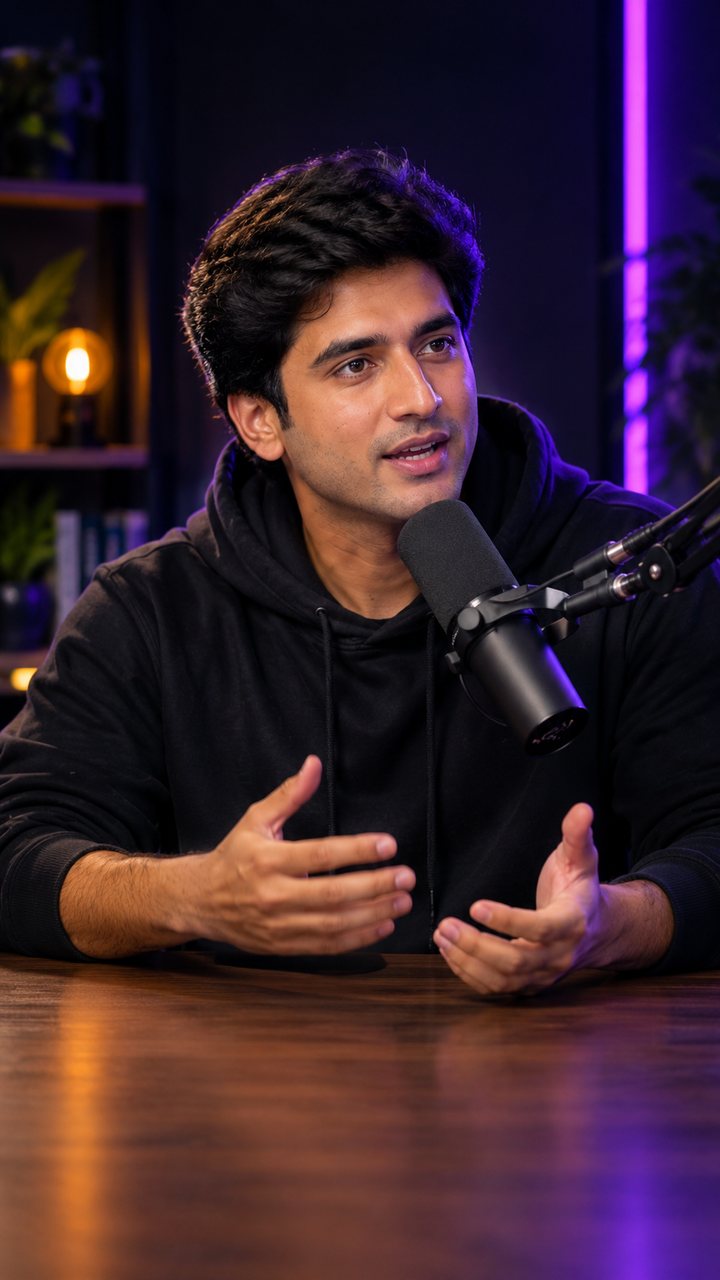
Podcast projects offer manual selection too.
How It Works

Load.
Select. Export.

01
Add your video
Upload a file or paste a link.
02
Choose Manual Clip Selection
Switch from AI Clipping to manual mode.
03
Mark your moments
Drag or type the ranges you want.
04
Run and download
Get one finished clip per selection.
Good To Know

Handy
Details.

Needs a preview
Manual selection needs a video preview. If one is not available, use AI Clipping or upload the file again.
From Claude or ChatGPT
Your assistant can create clips from ranges in seconds, and only the selected seconds are billed.
Check the cost first
The estimate tool shows the credits a selection will use before you spend them.
Mix with AI
Use AI Clipping to find ideas, then re-run with manual selection for the exact cuts.
Who Uses It

Great For
Precise Editors.

YouTubers
Pull a specific story or joke.
Podcasters
Cut the exact quote you have in mind.
Educators
Extract one lesson segment.
Agencies
Follow a client’s timestamp list.
Marketing teams
Pick the product demo moments.
Event teams
Highlight the key speaker moments.
FAQ

Frequently Asked
Questions

Yes. Link import and Manual Select are included on every plan.
No. Only the ranges you select become clips.
Yes. Drag on the timeline or type start and end times.
A preview of the video must be available. If it is not, use AI Clipping or upload the file again.
Only the selected seconds are billed, and you can see the estimate first.
Pick Your First Moment

Upload a video and select your own clips.

Select My Own Clips →
Get free clips